How to access cPanel Webmail
Print- 0
There are several options to access your cPanel Webmail interface:
Using direct links
Via the Namecheap account (only for Shared hosting)
Via the cPanel account
To access Webmail directly in your browser, copy and paste one of the following links in to your browser:
https://yourdomain.com:2096
https://yourdomain.com/webmail
http://webmail.yourdomain.com
NOTE: Make sure to replace yourdomain.com with your actual domain name you use with your hosting.
Once Webmail has loaded, enter the email address and the password of the account you want to access and click the Log in button:
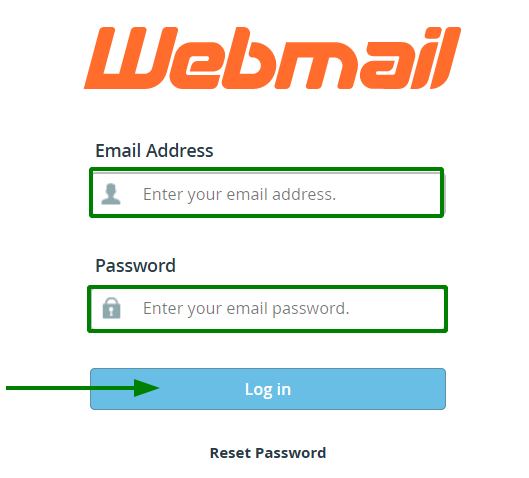
NOTE: If you use the http://webmail.yourdomain.com link to access your cPanel webmail, there’s a good chance you’ll see a 'broken' interface when you come accessing the Horde webmail client. It happens since such a proxy link uses port 80 to connect, while the default cPanel configuration for the aforementioned clients implies port 81. This mismatch may result in a connection error or a corrupted webmail display.
If you are using our Shared hosting, you can also access your mailbox from your Namecheap account:
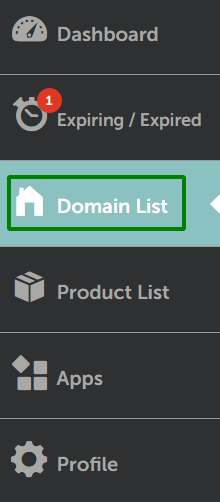
1. Just login to the Namecheap Dashboard and navigate to the Domain List:

3. Find the required domain and click on the inverted v shape next to it. Your hosting plan is now on display. From here, just click on the drop-down menu and select the option to Manage
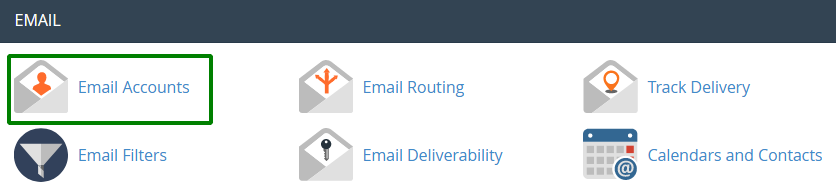
4. On the next page, scroll down to the Software section. This area contains the most used cPanel Shortcuts. Find the Email Accounts icon and click on it:

You should now be looking at a list of the mailboxes you’ve created so far. Find the one you need, and select the option to Check Email:

Another way to log in to your webmail interface is to do it from a cPanel account. To begin, open your cPanel and navigate to the Email Accounts menu:
On the next page, find the mailbox you want to access and click the Check Email button:
If you are logging into Webmail for the first time, you’ll be presented with the two interfaces:
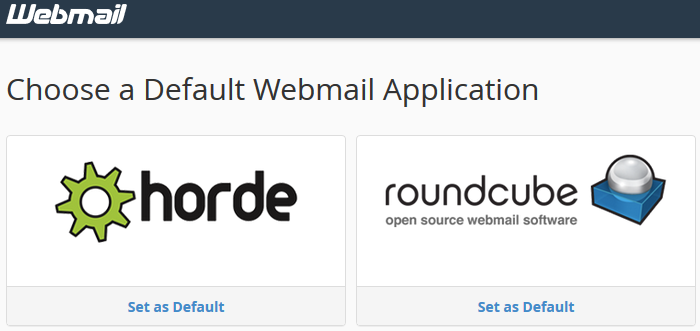
You can choose any webmail interface you want.
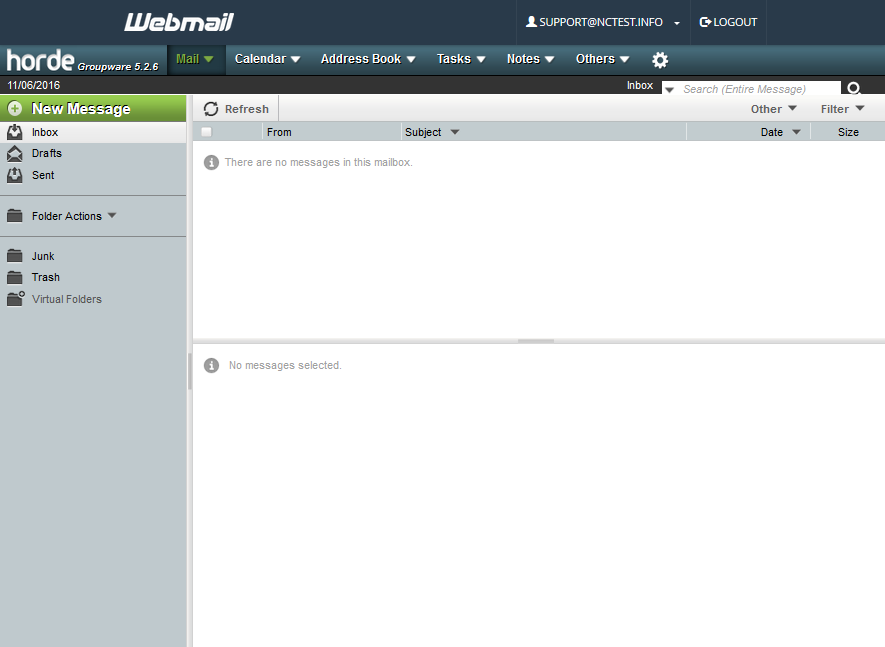
Horde webmail interface:
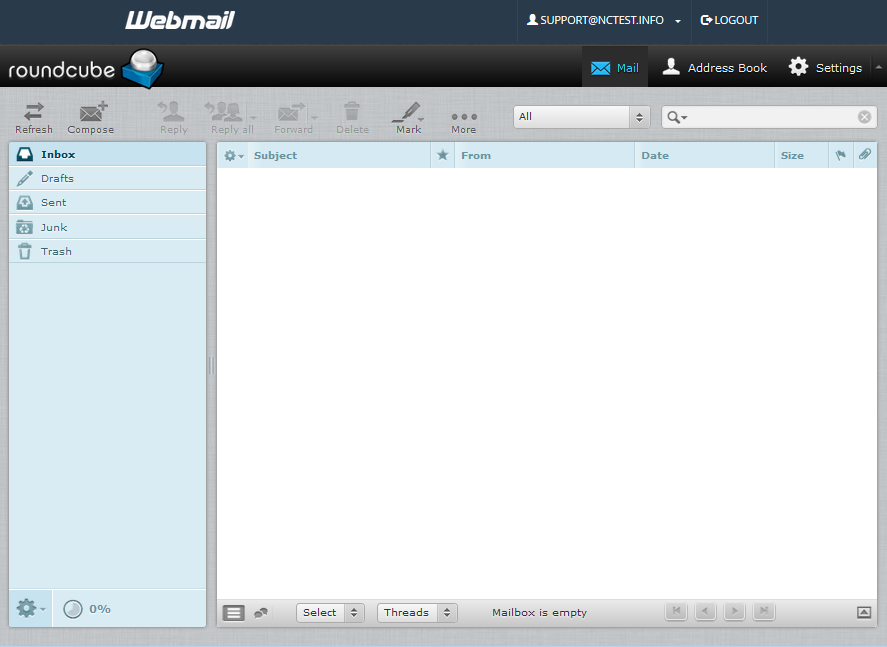
Roundcube webmail interface:
It’s possible to change the webmail interface any time, just select the Webmail Home option:
